# NextDR Installation and Operation Guide

**Version:** 1.1.0\
**Prepared for:** Engineering & Operations Teams\
© 2025 NextDR.ai - All Rights Reserved

***

## Overview

NextDR.ai is an AI-driven disaster recovery orchestration platform that automates backup, recovery, and compliance workflows across Google Cloud environments. It provides a no-code interface to design, test, and execute recovery plans for applications spanning Compute Engine, Cloud SQL, VPCs, networks, and other GCP resources. By integrating natively with Google Cloud, NextDR.ai enables secure, policy-driven recovery operations that can be tested or executed on demand—whether for compliance validation, cyber recovery, or disaster response.

This guide provides detailed, step-by-step instructions for **installing and configuring** NextDR.ai on Google Cloud Platform (GCP). It covers the setup of required GCP projects, compute resources, networking, service accounts, roles, and permissions to ensure secure and isolated operations between production (source), recovery (target), and control-plane environments.

After installation, the **Config and Operations section** guides you through setting up and managing your disaster recovery environment within NextDR.ai. You’ll begin by adding NextDR, Source and Target Datacenters, which establish secure access to your respective GCP projects. Once the datacenters are configured, you can create an Application Group, which bundles all resources that need to be protected and recovered as a unit. These can include Compute Instances, Cloud SQL databases, VPCs, networks, firewalls, and other project-level components, ensuring a complete and consistent recovery scope.

With your Application Groups defined, you can then create Recovery Plans using the built-in no-code workflow editor. This intuitive interface lets you design recovery steps in sequence—automating the restoration of compute instances, databases, and networks, along with operational actions like approvals, notifications, and verification steps. Together, these configuration elements enable seamless orchestration of backups and restores across multi-cloud environments while maintaining visibility, consistency, and control of all operational dependencies.

***

Summary of High-Level RequirementsTo deploy NextDR.ai, you will need:

* A dedicated GCP project to host the NextDR.ai software, with a compute instance (Ubuntu 24.04 LTS, 2 vCPUs, 16 GB RAM, 30 GB disk) and SSH/sudo access.
* One or more Source Projects containing production workloads and applications to be backed up.
* One or more Target Projects (cleanroom or recovery environments) for restoring workloads securely during recovery operations.
* Properly configured service accounts with custom roles that grant least-privilege access for cataloging, backup and restore operations.
* Enabled GCP APIs such as Compute Engine, Cloud SQL, Cloud Resource Manager, and IAM Service Account Credentials API.
* A Cloud Storage bucket for storing Cloud SQL backups.

The installation steps will guide you through creating custom IAM roles, configuring the required GCP projects, assigning permissions, and running the NextDR installer on your compute instance to deploy all components—database, backend services, and UI—using Docker containers.

### **Helper Script**

* To automatically create the service accounts, create custom roles and assign  IAM permissions, you can use the helper scripts at the following location:
* <https://github.com/nextdrai/nextdrinstall/blob/main/scripts/nextdr-iam-setup/readme.txt>

### Create custrom roles

When creating roles, for "Role launch stage", use "**Beta**"

#### Create custom role "NextDR Backup Role" for backup permissions

```
- compute.disks.get
- compute.disks.list
- compute.disks.createSnapshot
- compute.snapshots.get
- compute.snapshots.create
- compute.snapshots.list
- compute.snapshots.useReadOnly
- compute.snapshots.getIamPolicy
- compute.snapshots.setIamPolicy
- compute.snapshots.delete
- compute.instances.get
- compute.instances.list
- compute.projects.get
- compute.zoneOperations.get
- compute.globalOperations.get  
- storage.buckets.get
- storage.buckets.list
- storage.buckets.getIamPolicy 
- storage.objects.get
- storage.objects.list
- storage.buckets.create
- storage.buckets.setIamPolicy
- storage.buckets.update
- resourcemanager.projects.getIamPolicy
- resourcemanager.projects.get
- cloudsql.instances.list
- cloudsql.instances.get
- cloudsql.backupRuns.create
- cloudsql.backupRuns.list
- cloudsql.databases.list
- cloudsql.instances.export
- serviceusage.services.list
- compute.networks.list
- compute.subnetworks.list
- compute.firewalls.list
- compute.routes.list
- backupdr.backupPlanAssociations.createForCloudSqlInstance
- backupdr.backupPlanAssociations.deleteForCloudSqlInstance
- backupdr.backupPlanAssociations.fetchForCloudSqlInstance
- backupdr.backupPlanAssociations.getForCloudSqlInstance
- backupdr.backupPlanAssociations.triggerBackupForCloudSqlInstance
- backupdr.backupPlans.get
- backupdr.backupPlans.list
- backupdr.backupPlans.useForCloudSqlInstance
- backupdr.backupVaults.get
- backupdr.backupVaults.list
- compute.disks.get
- compute.disks.getIamPolicy
- compute.disks.list
- compute.disks.useReadOnly
- compute.instances.get
- compute.projects.get
- compute.snapshots.create
- compute.snapshots.get
- compute.snapshots.list
- compute.snapshots.setIamPolicy
- compute.snapshots.useReadOnly
- storagetransfer.agentpools.create
- storagetransfer.agentpools.delete
- storagetransfer.agentpools.get
- storagetransfer.agentpools.list
- storagetransfer.agentpools.update
- storagetransfer.jobs.create
- storagetransfer.jobs.delete
- storagetransfer.jobs.get
- storagetransfer.jobs.list
- storagetransfer.jobs.run
- storagetransfer.jobs.update
- storagetransfer.operations.cancel
- storagetransfer.operations.get
- storagetransfer.operations.list
- storagetransfer.operations.pause
- storagetransfer.operations.resume
- storagetransfer.projects.getServiceAccount

```

#### Create custom role "NextDR Restore Role" for restore permissions

```
- resourcemanager.projects.get  # To read basic project metadata.
- serviceusage.services.list    # To verify that necessary APIs are enabled before starting a restore.
- compute.projects.get          # To get project-level Compute Engine information.
- compute.zoneOperations.get    # To check the status of ongoing operations like creating a disk or a VM.
- resourcemanager.projects.setIamPolicy   # To apply a backed-up IAM policy to the project.


#Compute Engine (VMs, Disks, Snapshots)

- compute.snapshots.get         # To find an existing snapshot.
- compute.snapshots.create
- compute.snapshots.delete
- compute.snapshots.list        # To list available snapshots.
- compute.snapshots.useReadOnly # To use a snapshot as a source for a new disk.
- compute.disks.create          # To create a new persistent disk from a snapshot.
- compute.disks.setLabels
- compute.disks.use
- compute.disks.delete          # To delete a disk. ( Kamlesh, need to ask Avi why we need this on target )
- compute.instances.create      # To create a new VM instance.
- compute.instances.attachDisk  # To attach the newly created disk to the VM instance.
- compute.instances.setMetadata # To apply original metadata to the restored instance.
- compute.instances.setTags     # To apply original network tags to the restored instance.
- compute.networks.list         # To list available networks for VM placement.
- compute.subnetworks.useExternalIp
- compute.subnetworks.list      # To list available subnetworks for VM placement.
- compute.subnetworks.use

# Cloud SQL

- cloudsql.instances.list       # To list existing instances, which may be the restore target.
- cloudsql.instances.get        # view details of a specific instance.
- cloudsql.backupRuns.list      # To find the specific backup you want to restore from.
- cloudsql.instances.restoreBackup  # To initiate a restore from a backup run to an instance.
- cloudsql.instances.import     # To restore from a SQL dump file located in Cloud Storage.
- cloudsql.instances.update     # To make configuration changes to the instance after the restore.
- cloudsql.instances.create     # Create instance
- cloudsql.databases.create
- cloudsql.databases.list 

# Cloud Storage

- storage.buckets.get           # To locate the bucket containing backups.
- storage.buckets.list          # To access the bucket containing backups.
- storage.objects.get           # To read a specific backup object (file) from the bucket.
- storage.objects.list          # To list all backup objects (files) in the bucket.
- storage.buckets.create
- storage.buckets.setIamPolicy

```

### Configure GCP Projects

Now we will walk through setting up each GCP project in a typical environment&#x20;

* NextDR  Project - Where your NextDR compute instance and backup storage is located.
* Source Project(s) - Where your production resources are located
* Target Project(s) - Cleanroom or restore location

#### **NextDR  Project**

This project is dedicated to hosting the backup data and running the NextDR.ai software itself. It serves as the control plane and user interface for managing backups, orchestrating restores, and integrating with source and target environments.<br>

* A dedicated GCP project must be provisioned exclusively for NextDR software. This provides an airgap and permission seperation between your production projects.
* In GCP Console->APIs & Services, enable the following APIs&#x20;
  * Compute Engine API
    * Cloud SQL API
      * Compute Engine API
      * Cloud SQL API
      * Cloud SQL Admin API
      * Cloud Resource Manager API
      * IAM Service Account Credentials API
      * Service Networking API
      * storagetransfer.googleapis.com
      * storage.googleapis.com
* Created Compute Instance for NextDR software
  * Ubuntu 24.04 LTS (minimum)
    * Architecture: x86/64
      * 2 vCPUs
        * 16 GB Memory
          * 30 GB Disk Storage
            * Static IP Address
            * SSH capability ( use ssh to install software )
            * Open ports in firewall:  TCP  80, 3000, 8000, 8081, 22
            * Allow the host ip address via firewall.
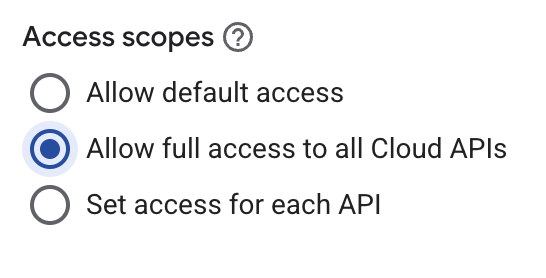
            * In GCP Console, for Compute instance, change Access Scopes

              * Access Scope should be "Allow full access to all Cloud APIs"

              <figure><img src="https://3585844634-files.gitbook.io/~/files/v0/b/gitbook-x-prod.appspot.com/o/spaces%2FBXmmleYPXdeclLaHa978%2Fuploads%2F9EV5fa4GDbCGfBqVHYyi%2FScreenshot%202025-09-30%20at%2010.10.56%E2%80%AFAM.png?alt=media&#x26;token=147fa1ab-084a-412e-97cd-28b638612f5a" alt="" width="273"><figcaption></figcaption></figure>
* Via GCP Console->IAM & Admin->Service Accounts :
  * Create nextdr service account , for example "**nextdr-service-software**"
  * Create a JSON API key for this service account that later will be used to create the NextDR Datacenter.
* Via GCP Console->IAM & Admin->IAM:&#x20;
  * Assign nextdr  service software account, for example "nextdr-service-softwar&#x65;**",** with the  following custom role "**NextDR Backup Role"** and  "**NextDR Restore Role**".

#### **Target Project(s)**

Target projects are isolated GCP environments used to recover applications during testing, security drills, or an actual cyber incident. They can serve as controlled “cleanroom” environments where workloads can be validated or restored without risk of reintroducing compromised infrastructure.

* One or more target projects can be configured. This allows organizations to set up multiple recovery environments for different purposes, such as test environments for disaster recovery drills or production-grade cleanroom restores during incident response.
* In GCP Console->APIs & Services, enable the following APIs&#x20;
  * Compute Engine API
  * Cloud SQL API
  * Cloud SQL Admin API
  * Cloud Resource Manager API
  * IAM Service Account Credentials API
  * Service Networking API
* Via GCP Console->IAM & Admin->Service Accounts :&#x20;
  * Create service account , for example, "nextdr-service-target"
  * Create a JSON API key for this service account that later will be used to create the source Datacenter in NextDR.ai software.
* Via GCP Console->IAM & Admin->IAM:&#x20;
  * Assign nextdr service software  account, "nextdr-service-softwar&#x65;**",** with the  following custom role "**NextDR Backup Role"** and  "NextDR Restore Role".

#### **Source Project(s)**&#x20;

These project hold the  production applications and workloads that will be protected by NextDR.ai.

* One or more source projects may be configured, depending on how production workloads are distributed across the organization.&#x20;
* In GCP Console->APIs & Services, enable the following APIs&#x20;
  * Compute Engine API
  * Cloud SQL API
  * Cloud SQL Admin API
  * Cloud Resource Manager API
  * IAM Service Account Credentials API
  * Service Networking API
* Via GCP Console->IAM & Admin->Service Accounts :&#x20;
  * Create service account , for example, "nextdr-service-source"
  * Create a JSON API key for this service account that later will be used to create the source Datacenter in NextDR.ai software.
* Via GCP Console->IAM & Admin->IAM:&#x20;
  * Assign nextdr service software  account, "nextdr-service-softwar&#x65;**"** with the  following custom role "**NextDR Backup Role".**  Also assign the "**NextDR Restore Role**" if you will be performing restores in source projec&#x74;**.**

***

## NextDR Installation Steps

```bash
# Download installer
curl -L -o ndr_installer.run https://github.com/nextdrai/nextdrinstall/raw/refs/heads/main/deploy/1.1.4/ndr_installer.run
# Make installer executable
chmod +x ndr_installer.run

# Run installer
sudo ./ndr_installer.run
```

### Advanced Installation from Google Artifact Registry

<pre><code><strong># Populuate your GCP Artifact Registry
</strong><strong>
</strong><strong>sudo bash
</strong><strong>gcloud auth login
</strong><strong>./ndrAdmin.sh --adv
</strong><strong>Choose "15. Populate NextDR GCP Docker Artifact Registry with application images"
</strong><strong>
</strong><strong>#To install with a GCP Artifact Registry as the image source, we use this commandline param:
</strong>#Note: us-east5-docker.pkg.dev/nextdr2 is the path to your Google Artifact Registery

./ndrInstall.sh --gcpreg "us-east5-docker.pkg.dev/nextdr2"
</code></pre>

### Advanced Installation from Local Docker Repo

<pre><code># Download install scripts
mkdir install
cd install
curl -L "https://github.com/nextdrai/nextdrinstall/raw/refs/heads/main/deploy/1.1.4/ndr_installer.tar.gz" | tar -xzf -
<strong>
</strong># To use the admin tools to populate local docker repo
sudo ./ndrAdmin.sh --adv
<strong>
</strong><strong># Install using local docker repo
</strong><strong>sudo ./ndrInstall.sh --localreg "localhost:5150"
</strong><strong>
</strong><strong>
</strong></code></pre>

### Install Prerequisites

Please select an option:

1. **Check and install software package prerequisites**
2. Install NextDR application suite
3. Check for updates for all currently installed applications
4. Remove NextDR application suite&#x20;

q. Exit

Enter your choice \[1-n]:

***

### **Install the NextDR application**

Please select an option:

1. Check and install software package prerequisites
2. **Install NextDR application suite**
3. Check for updates for all currently installed applications
4. Remove NextDR application suite&#x20;

q. Exit

Enter your choice \[1-n]:

***

### Config and Operations

The Config and Operations section guides you through setting up and managing your disaster recovery environment in NextDR.ai. In this section, you’ll learn how to add Source and Target Datacenters, which establish secure access to your respective GCP projects. Once your datacenters are configured, you can create an Application Group, which bundles together all resources that need to be protected and recovered as a unit. An Application Group can include Compute Instances, Cloud SQL databases, VPCs, networks, firewalls, and other project-level properties, ensuring a complete and consistent recovery scope. After creating Application Groups, you can define Recovery Plans, which use a no-code workflow editor to sequence recovery actions step by step. Recovery Plans allow you to automate the restoration of compute instances, databases, networks, and other resources, as well as operational steps such as approvals, notifications, and verifications, ensuring reliable and repeatable disaster recovery execution. This configuration layer enables seamless orchestration of backups and restores across multi-cloud environments while maintaining visibility and control of all operational dependencies.

#### Login to the NextDR.ui and configure license

```
http://<host ip or name of NextDR compute instance>
```

* Using the NextDR admin console userid and password you entered during install, login to the UI
  * Initially, you will be asked to input a NextDR.ui license code that will be provided by the NextDR.ai sales. team.

#### Setup Email Server Configuration

The Setup Email Server Configuration section allows you to define and manage your organization’s email server settings within NextDR.ai. Here, you can specify the SMTP server details, authentication credentials, and sender information used for system-generated communications. NextDR.ai utilizes this configuration to send approval requests, notifications, and verification emails during the execution of recovery plans. Properly configuring your email server ensures reliable communication and timely updates to all stakeholders throughout the recovery process.

On the NextDR admin console, select "SMTP Settings"

<figure><img src="https://3585844634-files.gitbook.io/~/files/v0/b/gitbook-x-prod.appspot.com/o/spaces%2FBXmmleYPXdeclLaHa978%2Fuploads%2FAYg8793HyL74ysNSLWfo%2FScreenshot%202025-10-07%20at%2012.35.17%E2%80%AFPM.png?alt=media&#x26;token=fb6fd9ae-7b6e-4679-80f2-228330a535ec" alt=""><figcaption></figcaption></figure>

#### Create NextDR Datacenter

* For each Google Project, create a datacenter.  Create datacenters for NextDR, Source project(s), and Target Projects(s)
* On the NextDR admin console, select "DataCenters"

  * Select "Add Datacenter"
  * If this is the NextDR datacenter, toggle on the "Project with NextDR Service Account".  Only one datacenter should have this property turned on .
  * Name the datacenter,  copy and paste your JSON key for the appropriate service account (e.g, if this is the Source Datacenter, obtain the nextdr service account JSON key for the source project. )

  <figure><img src="https://3585844634-files.gitbook.io/~/files/v0/b/gitbook-x-prod.appspot.com/o/spaces%2FBXmmleYPXdeclLaHa978%2Fuploads%2FzvpJvFznugKUGTCQB0qg%2FScreenshot%202025-12-22%20at%204.51.56%E2%80%AFPM.png?alt=media&#x26;token=07c94b5c-a23e-46f4-b51d-a1172db9e3eb" alt="" width="375"><figcaption></figcaption></figure>

#### Create Application Group

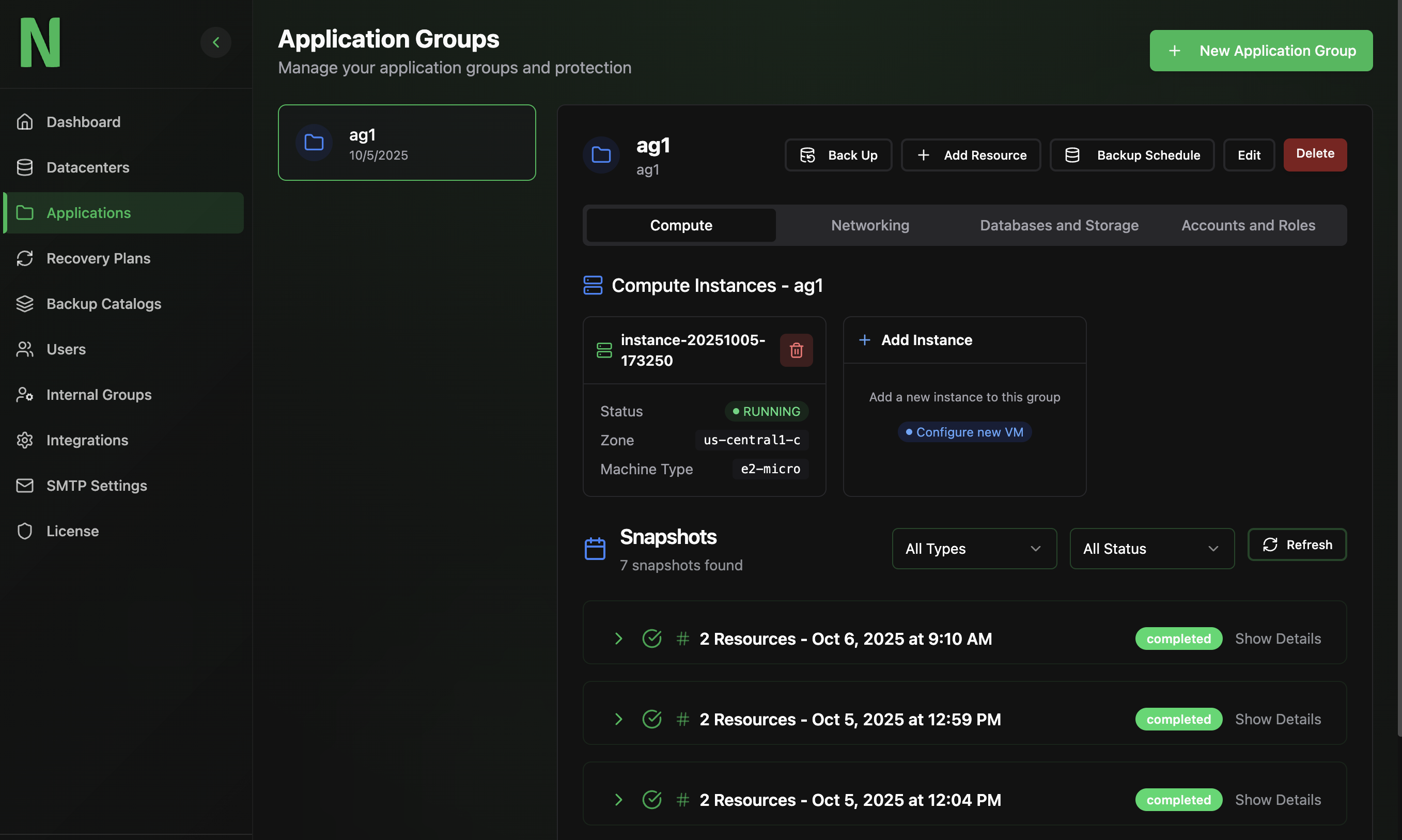
An Application Group in NextDR.ai is a logical collection of resources that need to be backed up and recovered together. It can include compute instances, databases, networks, firewalls, and other project-level components, allowing you to manage and orchestrate disaster recovery at the application level rather than individually for each resource.

* On the NextDR admin console, select "Applications"

  * Select "New Application" Group
  * When creating new Application group, set the target Datacenter to "NextDR" project, and select a target bucket in the "NextDR" Project.  This will ensure that all backup data is kept isolated in the "NextDR" Project.
  * Here you can add compute instances, cloud sql resources that need data protection.
  * You can schedule a backup of the application group
  * You can also view history of your application backup operations.

  <figure><img src="https://3585844634-files.gitbook.io/~/files/v0/b/gitbook-x-prod.appspot.com/o/spaces%2FBXmmleYPXdeclLaHa978%2Fuploads%2FQqGu6uYna37p1aFkfWuK%2FScreenshot%202025-10-07%20at%2012.31.53%E2%80%AFPM.png?alt=media&#x26;token=c50abc18-3e72-4477-b5e1-66a718c1842f" alt=""><figcaption></figcaption></figure>

#### Recovery Plan

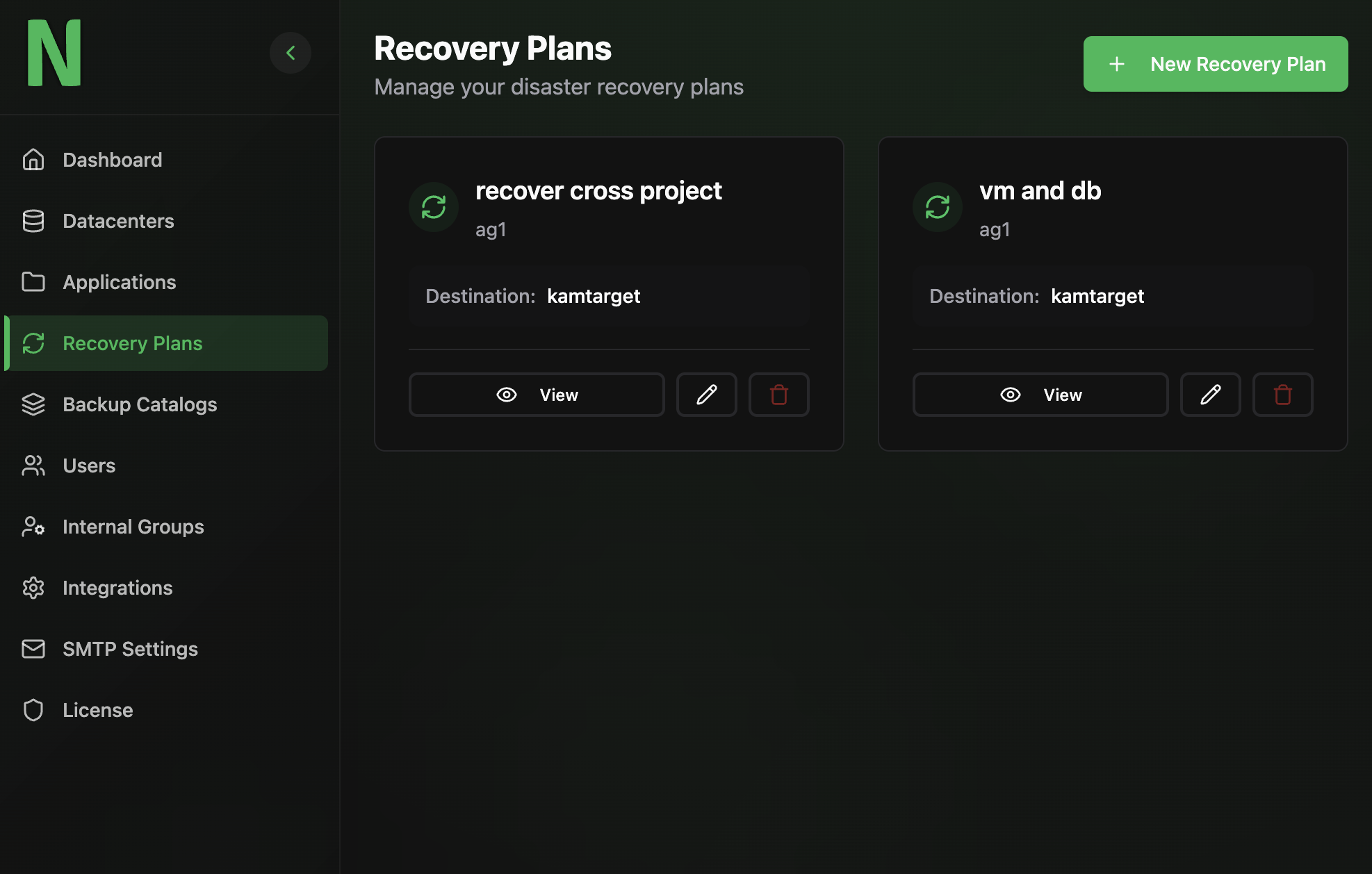
The Create Recovery Plan section in NextDR.ai allows you to build and manage multiple recovery plans for different applications or environments. Each recovery plan lets you define a source and target project, then use a no-code workflow editor to design the recovery process step by step. Within the editor, you can add actions such as recovering compute instances, restoring databases, reconfiguring networks, and applying firewall settings, as well as operational steps like approvals, notifications, and verification checks. This flexible and intuitive approach allows users to create fully automated and repeatable recovery workflows without writing any code, ensuring consistent and reliable disaster recovery execution.

* On the NextDR admin console, select "New Recovery Plans"

  * Select a Name, description, Application Group and Destination Datacenter
  * Select "Create Plan"

  <figure><img src="https://3585844634-files.gitbook.io/~/files/v0/b/gitbook-x-prod.appspot.com/o/spaces%2FBXmmleYPXdeclLaHa978%2Fuploads%2FQiR2I6grtrYr7ZqPfIwP%2FScreenshot%202025-10-07%20at%2012.42.39%E2%80%AFPM.png?alt=media&#x26;token=c235f7c5-d517-4ef6-9cd2-11b938e6210b" alt="" width="375"><figcaption></figcaption></figure>

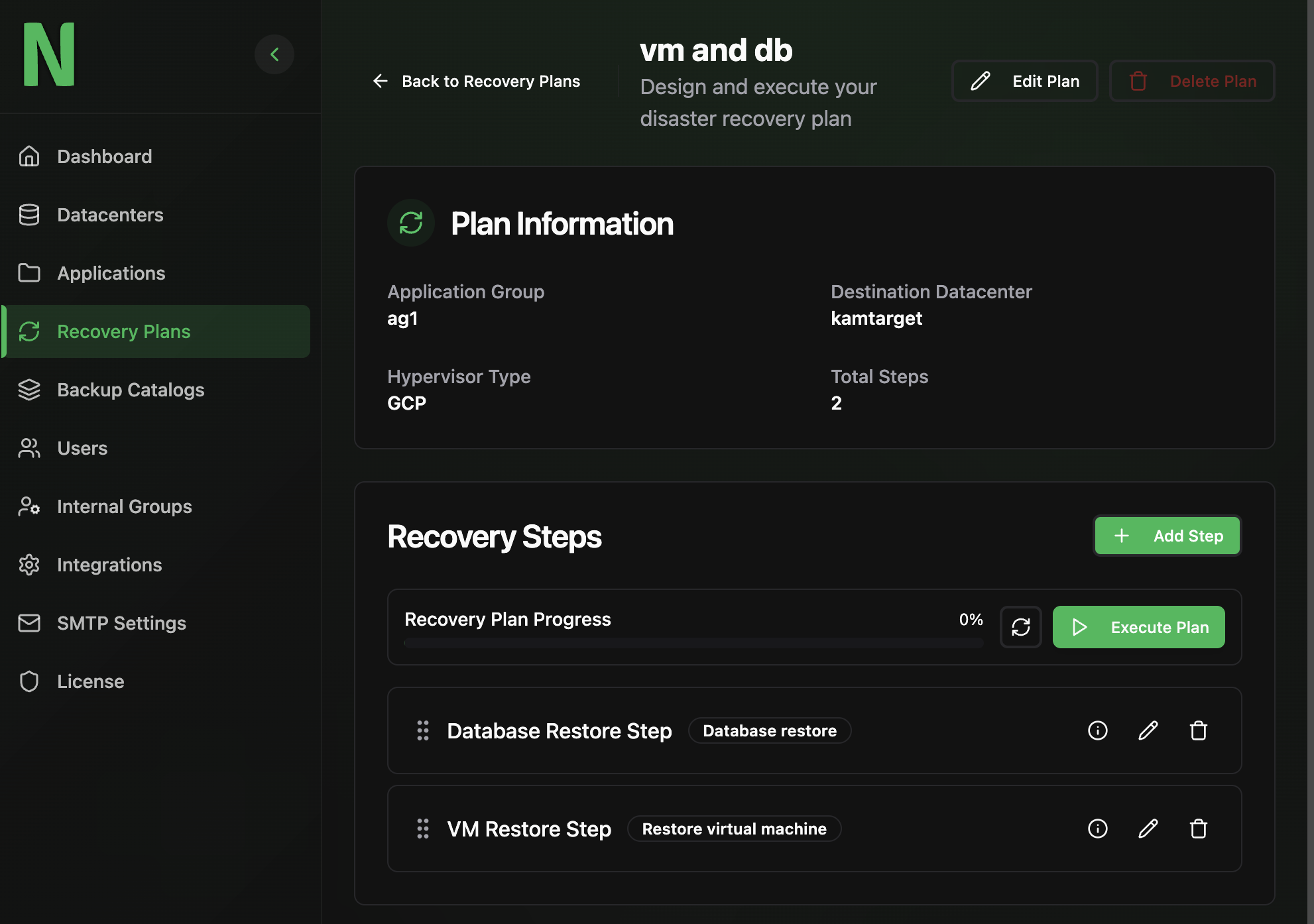
* Once a Recovery Plan is created, you can view and edit the recovery plan steps by selecting "View" on a recovery plan.

<figure><img src="https://3585844634-files.gitbook.io/~/files/v0/b/gitbook-x-prod.appspot.com/o/spaces%2FBXmmleYPXdeclLaHa978%2Fuploads%2Fke2IAUv2yDwa3E7UsyC4%2FScreenshot%202025-10-07%20at%2012.45.05%E2%80%AFPM.png?alt=media&#x26;token=4984832e-7fa4-4316-b9e5-6d2745590fc2" alt="" width="375"><figcaption></figcaption></figure>

* Once you "View" the recovery plan you add steps, execute plans, and see execution history.

<figure><img src="https://3585844634-files.gitbook.io/~/files/v0/b/gitbook-x-prod.appspot.com/o/spaces%2FBXmmleYPXdeclLaHa978%2Fuploads%2Fpg9C9FdB6ag3Df20nCNr%2FScreenshot%202025-10-07%20at%2012.47.15%E2%80%AFPM.png?alt=media&#x26;token=f1da3504-c86a-4233-aa6d-dac76cf13e7d" alt="" width="375"><figcaption></figcaption></figure>

<figure><img src="https://3585844634-files.gitbook.io/~/files/v0/b/gitbook-x-prod.appspot.com/o/spaces%2FBXmmleYPXdeclLaHa978%2Fuploads%2FobrvR1AIdpITf9Gl2vXW%2FScreenshot%202025-10-07%20at%2012.55.39%E2%80%AFPM.png?alt=media&#x26;token=0779f60d-2bb6-4795-8c33-047f6de2e33e" alt="" width="375"><figcaption></figcaption></figure>